1st. License $1,395.00
Each Additional License $1,195.00 |
| Upgrade from V2 to V3 for $795 if you are current with your support fee |
|
|
 |

|
|
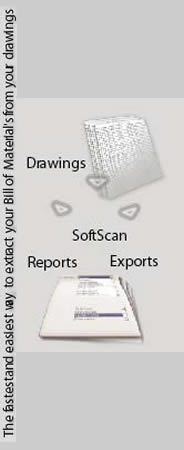
SoftScan is a generic Bill of Material scanner designed to read from various CAD systems that generates reports for fabrication and produces various output formats for production management. It's a fully customizable scanner capable of understanding almost every different kind of bill of material.
SoftScan is a robust, stand-alone software system that reads any DWG, DXF or 3D-Cad/SmartCad file directly, and creates a file that can be imported into:
FabTrol
Fabsuite
StruMIS
EJE
Steel 2000
ROMAC
Structural Software
And Microsoft Excel
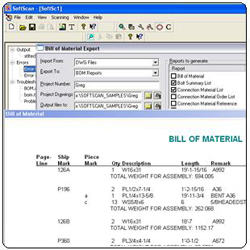
By simply selecting your drawings and clicking the scan button, the rest is automatic, and no 3rd party CAD system or software is required. SoftScan also produces a variety of reports based on the BOM including a Mill Order Report, Cutting List, Material Summary Report, Bolt Summary and Nesting Report.
The tedious task of typing Bills of Material into these software packages is now a thing of the past.
It's simple user interface will have you scanning in minutes, and help you download hundreds of detailing sheets with a simple mouse click.
|
 |
- Title-less Scanning
- Save and Load your projects
- Kiss File Version 1.1
- Choose reports on the fly
- Customizable Reports Format
- New and friendlier user interface
- New Type Code with no description required
- Faster scanning engine
|
|
|
|
- Steel2000
- KISS Files
- Structural Software
- Microsoft Excel
- EJE
- Romac
- 3D Cad / SmartKad
- DWG / DXF
- Revisions
- Sequences
- Pay Code
- Finishes
|
- Bill of Material
- Connection Material List
- Connection Material Order List
- Connection Material Reference
- Main Material Cutting List
- Main Material Nesting
- Main Material Order List
- Main Material Order List with Marks
- Fiel Bolt Summary
- Field Bolt Placement
|
|
|
|
|
-
Works with any DWG, DXF, or 3d-cad/SmartKad drawing file, from any source.
-
Reads drawing files directly.
-
Autocad or any software is NOT required if the Drawings are saved in 2002 format. (For newer drawings you require to have the same version of Autocad that the drawings were made on)
-
Your detailer does his cad work as he normally would.
-
No special requirements or software while creating the drawings.
-
Can scan as many drawings as you wish (or select) with one click of the mouse.
-
Save the export file to your
hard drive, floppy drive, or email directly from SoftScan.
-
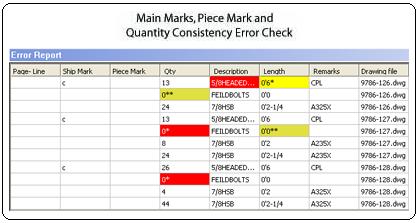
Automatically locates and reads the BOM.
-
Completely User Definable fields and Bill of Material objects.
-
Once defined in the settings, Softscan will read it.
-
Fast, and simple to use. Just click SCAN!
-
Imperial or Metric, input and or output BOM fields can be in any order
-
Sequences scanned and exported with member
Mill Mark (page-line) scanned and exported.
-
Revision number scanned and exported.
-
Works in most Windows platforms, on most PCs or Workstations (SoftScan is not designed to work on Servers or Networks).
Define input and output options
Define any field with any possible heading
Define, add, or delete any kind of main
member (W, TS, C, WT, etc).
Define, add, or delete any kind
of attachment (PL, BAR, L, etc).
Define, add, or delete any kind of bolt
Define, add, or delete any grade.
You can define general default grades,
and a default grade for each main member
type and attachment type,
any font and as many fonts as you want.
Define the character mappings for all
special characters in the font.
Define one of several methods of sequencing
Configuration automatically saved.
Now select your drawings, and click SCAN!
|
|
 Download SoftScan V2.0 Demo